We read code for many reasons: fixing bugs, adding new features, evaluating libraries or frameworks, and more. But what exactly do we gain from reading code? And can we document what we’ve learned in a useful way?
Explaining what we’ve learned from reading code to someone else isn’t always easy. If we turn that knowledge into documentation, sharing it will be much easier.
In this article, we’ll use Ace (Ajax.org Cloud9 Editor), a code editor, as an example to explore a few ways to document code-reading results.
What We Learned About Ace’s Core Features: Editing, Display, and Syntax Highlighting #
Ace consists of six main classes, as shown in the following ER diagram [1]. We used this diagram as a starting point for reading its source code.
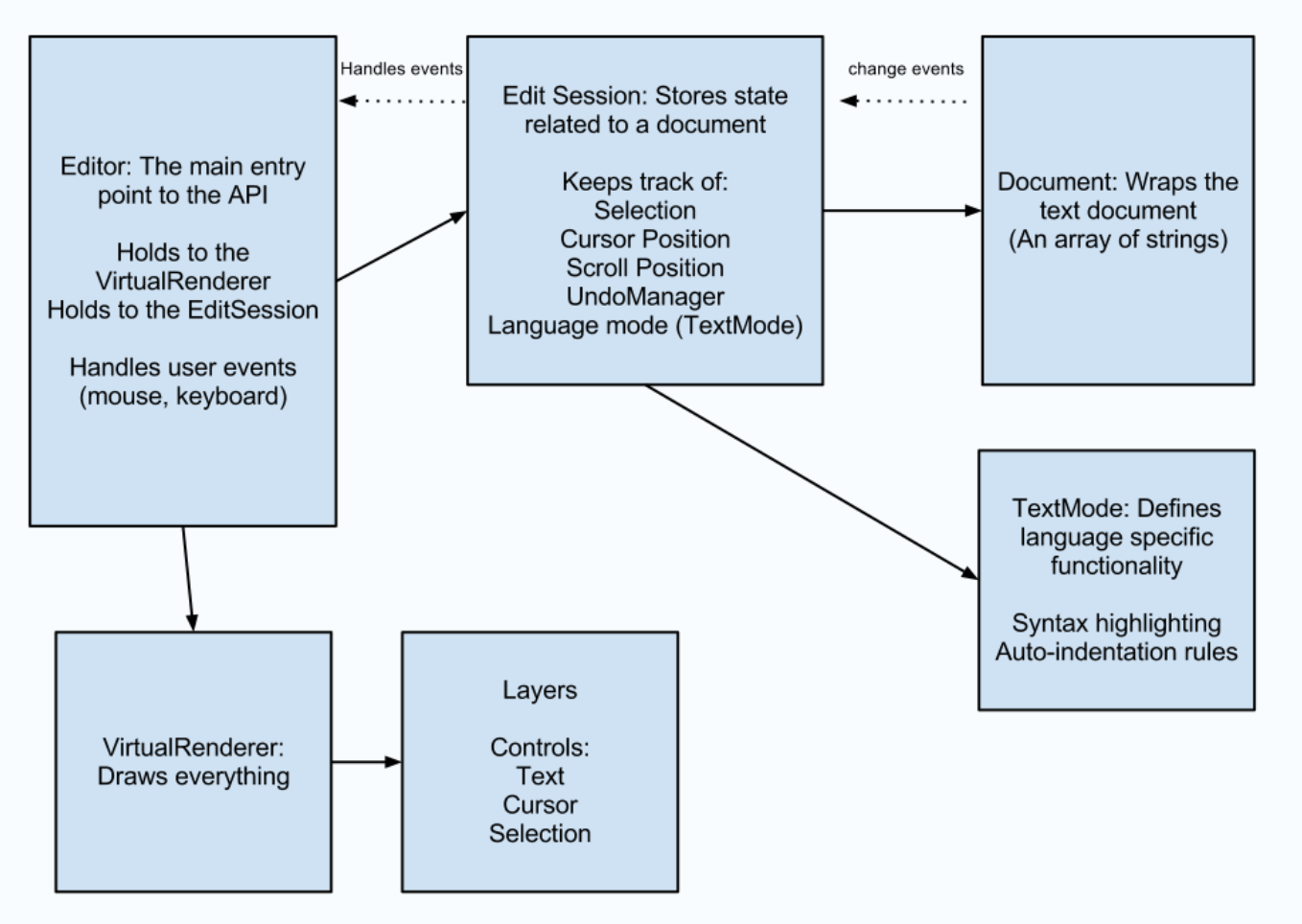
First, we looked into how Ace handles text editing. We found that three classes—Editor, EditSession, and Document—play central roles in this feature. Calls flow through these classes in the following order:
Editor -> EditSession -> Document
This is how Ace modifies the text data stored in the Document object.
Next, we examined how Ace displays text. Three classes—Editor, VirtualRenderer, and Layer—work together to manage the DOM elements stored in the Layer object. Calls flow through them in this order:
Editor -> VirtualRenderer -> Layer
This is how Ace displays the text the user enters.
As we continued reading, we also found that syntax highlighting relies on three classes: Editor, EditSession, and TextMode (or a language-specific Mode class). The TextMode class, or the corresponding language-specific Mode class, contains the tokens and regular expressions used to generate them.
That’s what we learned from reading the code. These findings are the results of our code reading.
For each feature, we were able to identify:
- The classes involved
- The flow of calls
- The data involved
- The flow of data
The explanation above is fairly concise, but we’d like to turn these findings into something even easier to understand than a written description. What kind of documentation could we create from them?
Adding What We Learned to the ER Diagram #
We’ve learned that three core features of a code editor—text editing, display, and syntax highlighting—each rely on three main classes. We’ve also identified the flow of calls between those classes and the data they work with.
Let’s add this information to the ER diagram [2] we saw earlier.
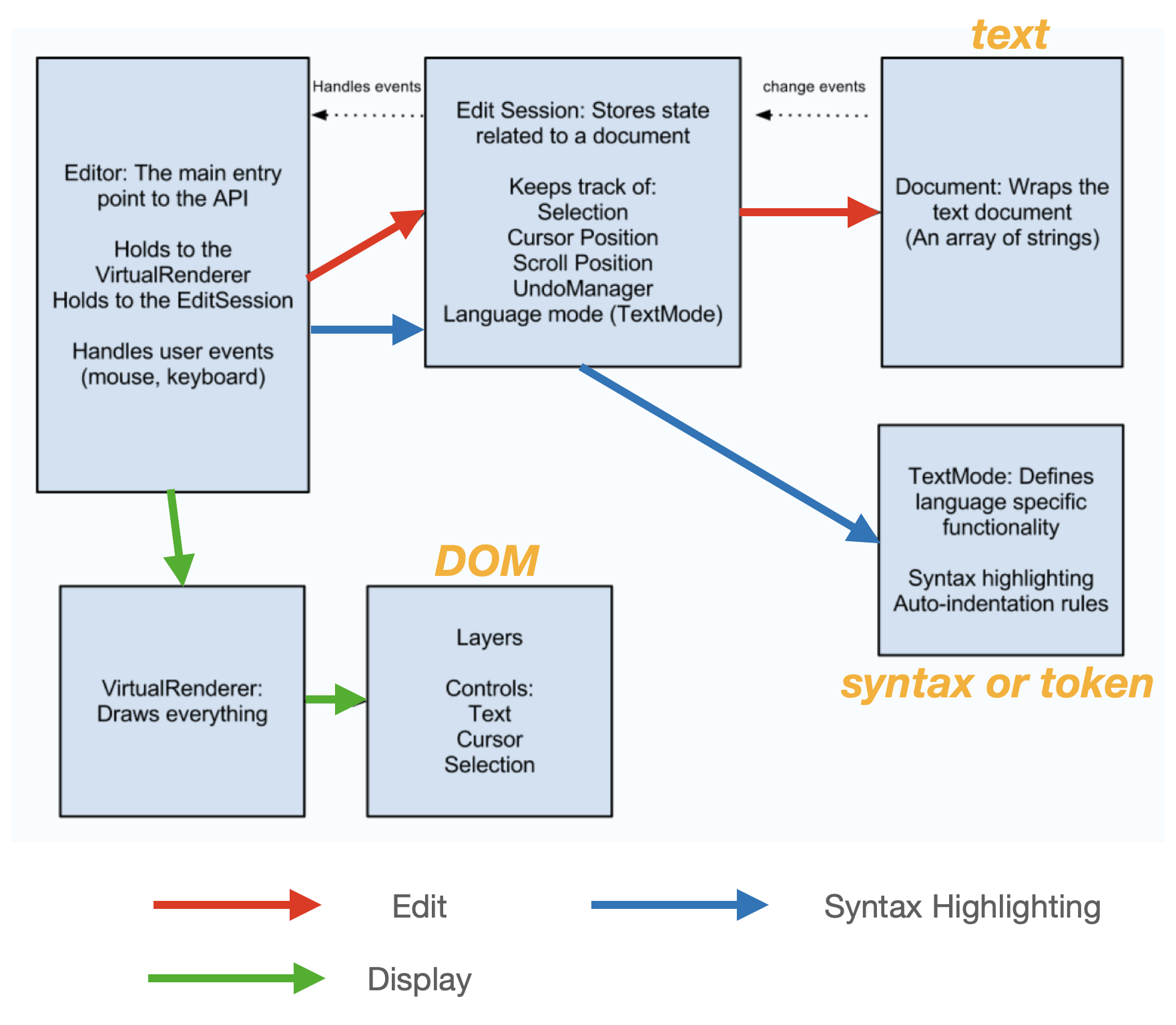
All we did was color-code the arrows in the original ER diagram and add labels next to the classes that store data. Even these small changes made the results of our code reading much easier to understand.
Presenting the information visually makes the relationships clear at a glance. It also makes it much easier to explain the findings to someone else.
The key here is that we’ve made the relationship between each core feature and its implementation visible. That includes the classes involved, the flow of calls, the data they handle, and the flow of that data.
Creating a Table That Maps Functional Specifications to Technical Specifications #
In this case, Ace’s official website already provided an ER diagram, so all we had to do was add information to it. But we won’t always be so lucky. We also wanted to find a simpler way to document what we’ve learned—something we could put together quickly.
The approach above worked because it made the relationship between features and their implementations clear. Let’s apply the same idea differently.
We found a useful explanation in an article about functional specifications on Joel on Software [3]:
- A functional specification describes how a product will work entirely from the user’s perspective. It doesn’t care how the thing is implemented. It talks about features. It specifies screens, menus, dialogs, and so on.
- A technical specification describes the internal implementation of the program. It talks about data structures, relational database models, choice of programming languages and tools, algorithms, etc.
In other words, a functional specification describes how a product works from the user’s perspective, while a technical specification describes how the program is implemented internally.
With this distinction in mind, we organized what we’d learned from reading Ace’s code into the following table.
| Column 1 | Column 2 |
|---|---|
| Functional specification (user’s perspective) | Technical specification (internal implementation) |
| Editing | Editor -> EditSession -> Document |
| Display | Editor -> VirtualRenderer -> Layer |
| Syntax highlighting | Editor -> EditSession -> TextMode |
It’s a simple table, but it does a good job of showing how functional specifications relate to technical specifications.
Even without an existing ER diagram, we can easily create a table like this. And because it’s so simple, it should also be easy for others to understand what we’ve learned from reading the code.
Conclusion #
In this article, we explored two ways to document what we learn from reading code: adding visual information to an ER diagram and creating a table that maps functional specifications to technical specifications.
Code reading is often about understanding internal implementations—in other words, technical specifications. By connecting what we learn from those implementations to features that users can recognize—functional specifications—we can turn our findings into documentation that’s easier to understand and share.
There may be other simple and useful ways to communicate what we’ve learned from reading code. We want to keep exploring better approaches.
If you have any ideas or techniques that work well for you, we’d love to hear about them.
References #
Ace API Documentation Copyright (c) 2010, Ajax.org B.V. All rights reserved. (Licensed under the BSD 3-Clause License) ↩︎
Ace API Documentation Copyright (c) 2010, Ajax.org B.V. All rights reserved. (Licensed under the BSD 3-Clause License) ↩︎
Joel on Software – Painless Functional Specifications, Part 2: What’s a Spec? ↩︎